Productivity tools are part of everyday work for students, freelancers, office teams, and remote workers. People use document editors, spreadsheet tools, presentation software, file converters, cloud storage apps, and communication platforms across Windows computers, mobile phones, tablets, and browsers. These tools can improve efficiency, but only when users install them from safe and reliable sources.
Many users search online for quick software downloads without checking where the installer comes from. This can create unnecessary security risks. A download page may look professional, but it could still contain outdated files, misleading buttons, bundled software, fake installers, or unofficial setup packages. For productivity tools that handle documents, work files, business records, and personal information, safe installation should always come first.
Before installing any productivity software, users should take a few minutes to verify the download source, review system requirements, check permissions, and understand how updates are delivered. These simple steps can help reduce the risk of installing unsafe or modified software.
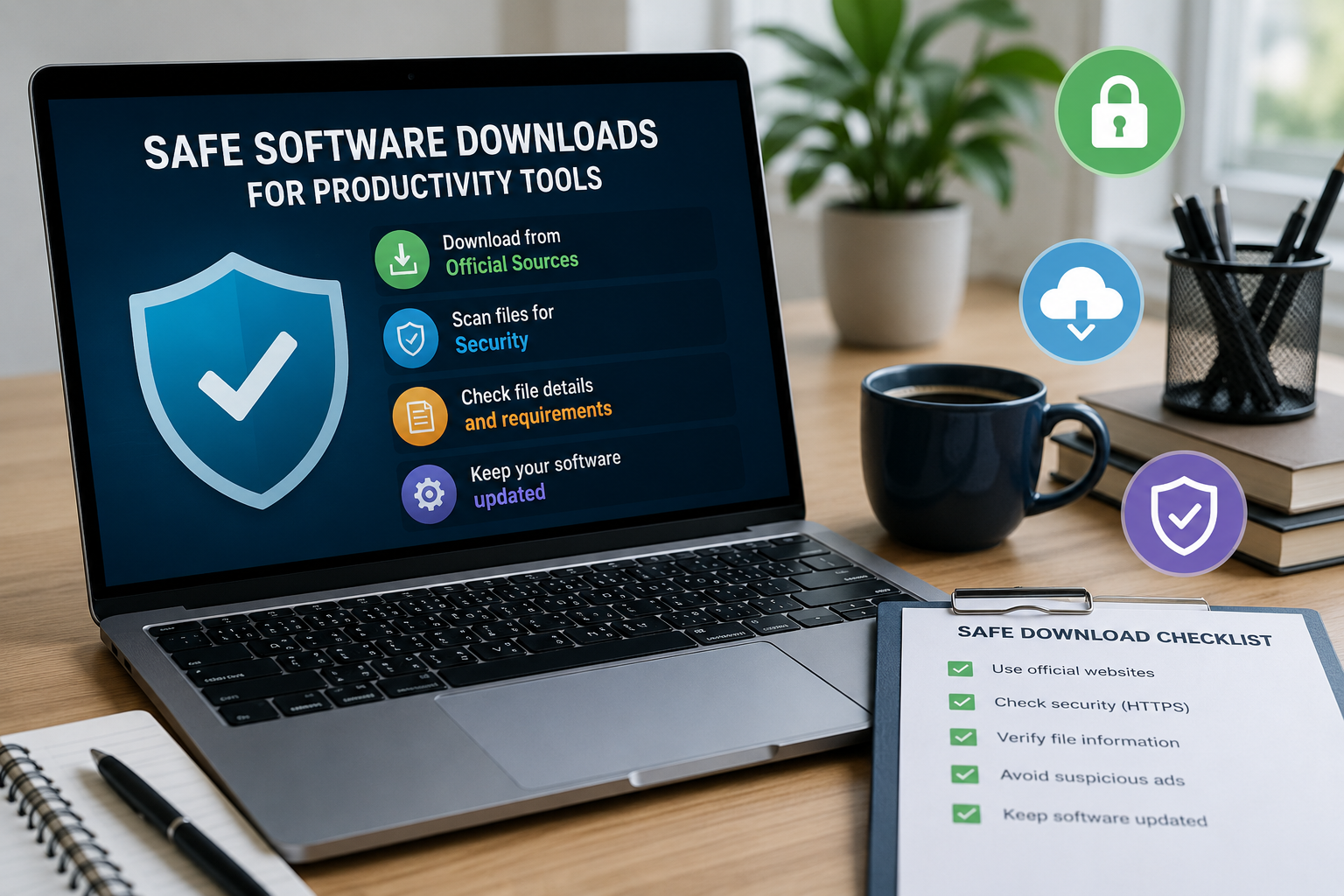
Why Safe Software Downloads Matter
Productivity software often has access to important files. A document editor may open contracts, invoices, resumes, reports, school assignments, and internal company files. A spreadsheet tool may handle financial records or customer data. A presentation app may include business plans, images, and confidential project details.
If users install software from an unreliable source, they may expose their devices to unwanted programs or security problems. Some fake installers may include advertising modules, browser changes, tracking tools, or additional software that users did not request. In more serious cases, unsafe downloads may be used to collect personal information or interfere with normal device performance.
This is why safe downloading is not only a technical issue. It is part of basic digital security. Users should treat productivity tools the same way they treat banking apps, work email, and messaging accounts: the source matters.
Start With the Official Source
The first step is to identify the official source of the software. Users should avoid downloading installers from random file-sharing pages, unknown mirror sites, pop-up ads, or pages that use confusing download buttons. A trustworthy download page should clearly explain what software is being offered, which operating systems are supported, and how users can install or update the tool.
For users comparing office software options, a clear wps下载 guide can help them understand safe installation steps, device compatibility, and basic setup details before using productivity tools for document work.
Checking the official source is especially important for Windows users. Many people search for desktop installers because they want offline access, better file management, or a more complete editing experience than a browser-based tool can provide. However, desktop installers should always come from a source that users can verify.
Review the Website Before Clicking Download
A download page should be reviewed before any file is saved to the device. Users should check whether the website uses HTTPS, whether the download button is clearly labeled, whether the page contains excessive pop-ups, and whether there are too many unrelated ads around the download area.
Misleading pages often use multiple buttons such as “Start,” “Continue,” “Install Now,” or “Download Manager.” These buttons may not always lead to the actual software. A clean software page should make it clear which file is being downloaded and why.
Users should also be careful with pages that force browser notifications, request unnecessary personal information, or redirect several times before the file begins downloading. These signals do not always mean the page is dangerous, but they are good reasons to slow down and verify the source again.
Check File Details and System Requirements
Before installing productivity software, users should check whether the file matches their device and operating system. A Windows installer, Android app file, macOS package, or browser extension should be clearly identified. If the file type does not match the device, users should not continue.
It is also useful to compare the file name, version number, and update date with information provided by the software publisher. If a page offers a very old version without explanation, users may face compatibility or security issues. If a page offers a “special” or “modified” version, users should be extremely cautious.
System requirements can also prevent installation problems. Productivity tools may need a certain operating system version, available storage space, processor type, or internet connection for activation and updates. Reading these details before installation saves time and reduces the chance of downloading the wrong file.
Avoid Bundled Installers and Unnecessary Add-ons
Some download pages use bundled installers. These files may install the main software together with extra tools, browser extensions, search settings, or promotional applications. Users should pay close attention during installation and avoid accepting optional add-ons they do not need.
During setup, users should read each screen carefully. Options such as “recommended installation” may sometimes include additional software. A custom or advanced installation option may allow users to remove unnecessary extras. If the installer looks unclear or pushes unrelated tools aggressively, it is safer to cancel the setup and look for a cleaner source.
Productivity software should help users work better, not create additional distractions or security concerns.
Keep Productivity Tools Updated
Safe installation does not end after the first setup. Users should also keep their productivity tools updated. Updates may include bug fixes, compatibility improvements, performance changes, and security patches. Outdated software can create problems when opening newer file formats or syncing documents across devices.
Where possible, users should use the built-in update feature or download updates from the same verified source used for installation. They should avoid update prompts from random ads or unknown websites. Fake update messages are a common way to push unsafe downloads.
For teams and small businesses, update habits should be consistent. When everyone uses different versions of the same productivity tool, file compatibility problems can appear. A simple update policy can help teams avoid confusion.
Protect Work Files After Installation
After installing office or productivity software, users should review basic settings. These may include file save locations, cloud sync options, default file formats, privacy controls, and document recovery settings. If the tool supports automatic backups, users should understand where those backups are stored.
Users should also be careful when opening files from unknown sources. Productivity files can contain links, macros, embedded objects, or external content. If a document arrives unexpectedly from an unknown sender, users should verify it before enabling advanced features or clicking links inside the file.
Good file habits are just as important as good download habits. A safe installer helps protect the device, while careful document handling helps protect the user’s work.
Conclusion
Productivity tools can make document editing, file management, and cross-device work much easier. However, users should not treat software downloads as a routine click. Every installer should come from a source that can be verified.
By checking the official source, reviewing the download page, confirming file details, avoiding bundled installers, keeping software updated, and protecting work files after installation, users can reduce many common risks. Safe downloading helps people work more confidently while protecting their devices, documents, and personal information.